
How to Save Your Data Before Invincible Closes
After six years, Invincible is closing. We're writing to make sure you leave with the one thing that matters most: your child's full care history, and enough time to save it.
Please read this now, not later. The most important step is one you have to do first.
The dates that matter
- August 1, 2026 — the app goes dark. After this date you can no longer log in or add care.
- Export your data before August 1. There's a short grace period after, but don't count on it.
- September 1, 2026 — everything is permanently deleted. About 30 days after the app goes dark, all data is erased for good. Once it's gone, we can't recover it.
⚠️ Two quick things before you start.
1. You may not see the Export option yet. To reveal it, open the app, log out, and log back in (or update to the latest version first).
2. The easiest way to save is "Save to Files" (straight to your phone). If you'd rather email or text it instead (Gmail or Messages) on an iPhone or iPad, that works too. You'll just need to restart the app after each team you export. It still sends, it's just a little annoying.
How to export your data
Follow these steps for each student. It takes about two minutes.
1. Open the app and go to the student team
Log in, then tap into your child's care team. You'll see the Edit Team button in the top right.
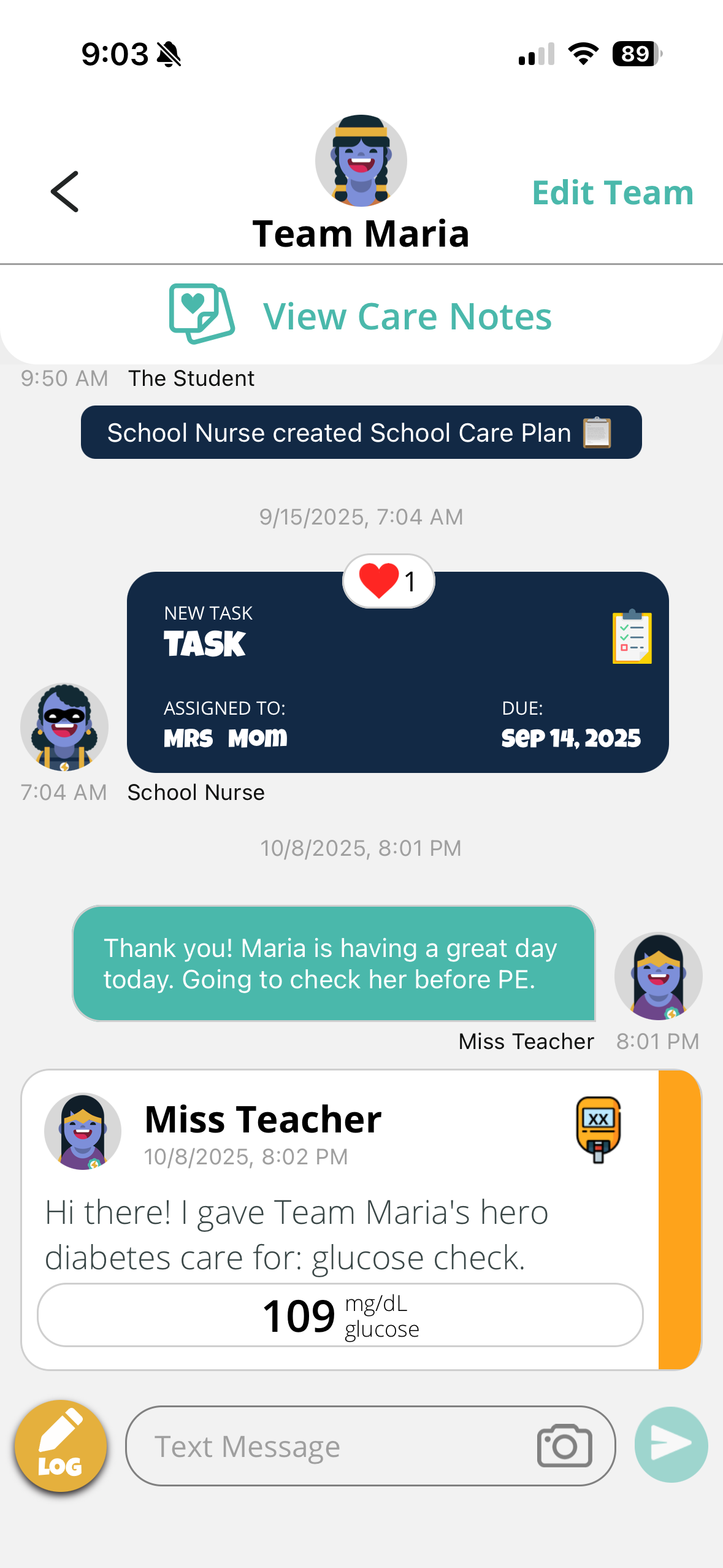
2. Tap "Edit Team"
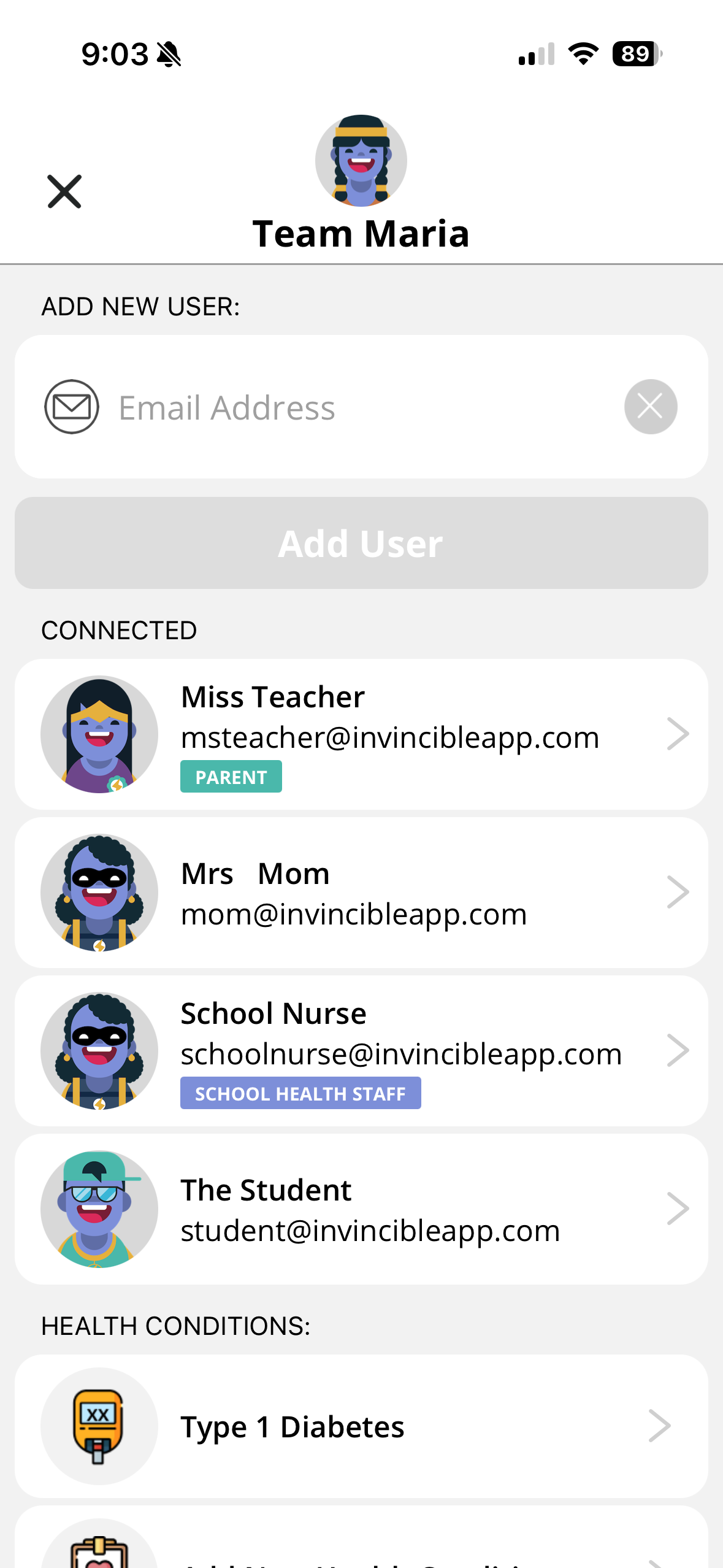
3. Scroll down to "Export Care Data"
You'll also see Export Conversation History here if you want to save your messages too.
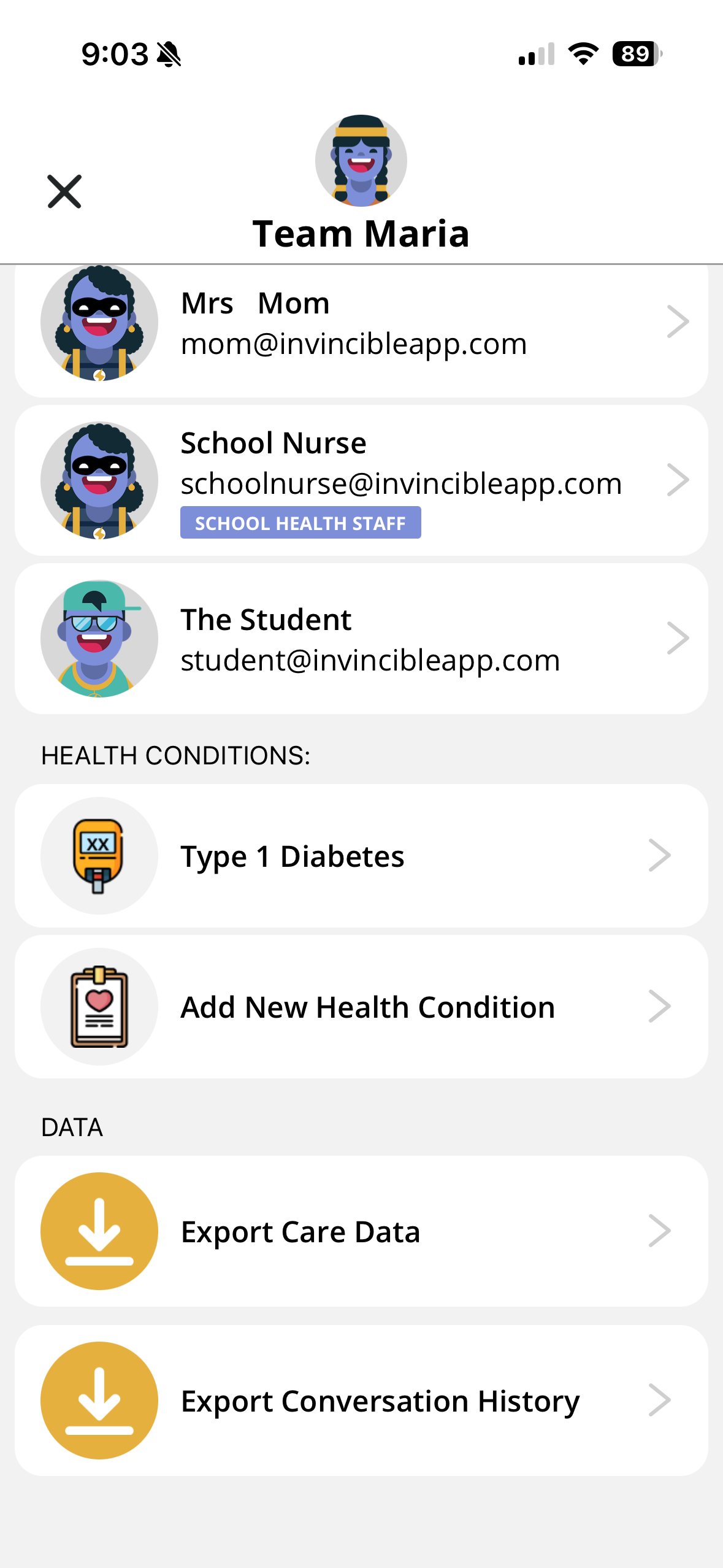
4. Tap "Export Care Data" or "Export Conversation History" then choose where to save it
When the menu pops up, tap Save to Files to save the file to your phone.
ℹ️ On an Apple device, Save to Files is the smoothest. Gmail and Messages work too, you'll just need to close and reopen the app before exporting your next team.

5. Repeat for each student
Exports are one per care team, so if you manage more than one student, repeat these steps for each. (If you emailed or texted the file on an Apple device, restart the app before the next one.)
6. Open your file
Your export saves as data-export.csv. It's a spreadsheet, so it opens right up in Excel, Numbers, or Google Sheets, with a row for every care entry your team logged: dates, times, and the details. That CSV is the student's complete record from Invincible.
What to do with the file
Save it somewhere safe, then share it with your school nurse and your child's doctor. It's the complete record of your child's care at school, and it belongs in their hands.
What happens after Invincible
We'll be honest: there's no drop-in replacement. You'll go back to coordinating care directly with your school and nurse, the way it worked before Invincible. That's not the ending we wanted for you, and we're sorry it's where things landed.
Need help?
Email bob@invincibleapp.com and I'm happy to help.
Thanks for letting us play a small part in your daily care.
— Bob